Question
How to setup DDNS on PPTZ7300?
Answer
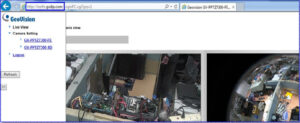
When configure DDNS PPTZ7300, please know the configuration should be done on PPTZ-FE’s web interface. User can follow the steps provided below to properly configure the DDNS related options.
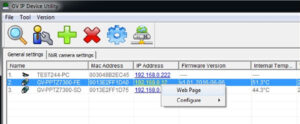
Step1. Using IP device utility to scan for the device open up the web interface of GV-PPTZ7300-FE.
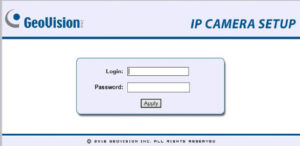
Step2. From IP device’s web login page, enter username and password to access the web configuration page. (Default: admin/admin)
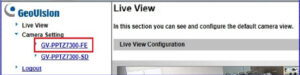
Step3. Under Camera Setting to the left frame, click on GV-PPTZ7300-FE to open up the configuration page.
Step4. Under Network -> Advanced TCP/IP page, click on the link Register GeoVision DDNS Server to register for a DDNS account to be used for the camera.
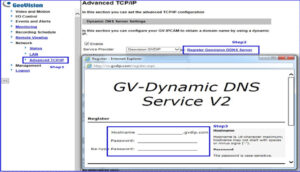
Step5. Under Network -> Advanced TCP/IP page, enable DDNS option and enter DDNS account registered. Be sure to click Refresh link after entering the information.
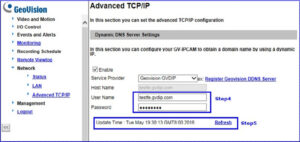
Step6. DDNS server will require 3 to 5 minutes to update the mapping. Please retry entering the DDNS address in web browser to test the connection. For any question on the information provided, please feel free to submit your question to our support window at support@geovision.com.tw